Skip to content
Product walkthrough

From an idea to
a working agent.

Follow the real product from the first description to a published workflow. Every screen below is from hiify.ai—not a coded stand-in for the app.

01Create

Begin with the job, not a blank canvas.

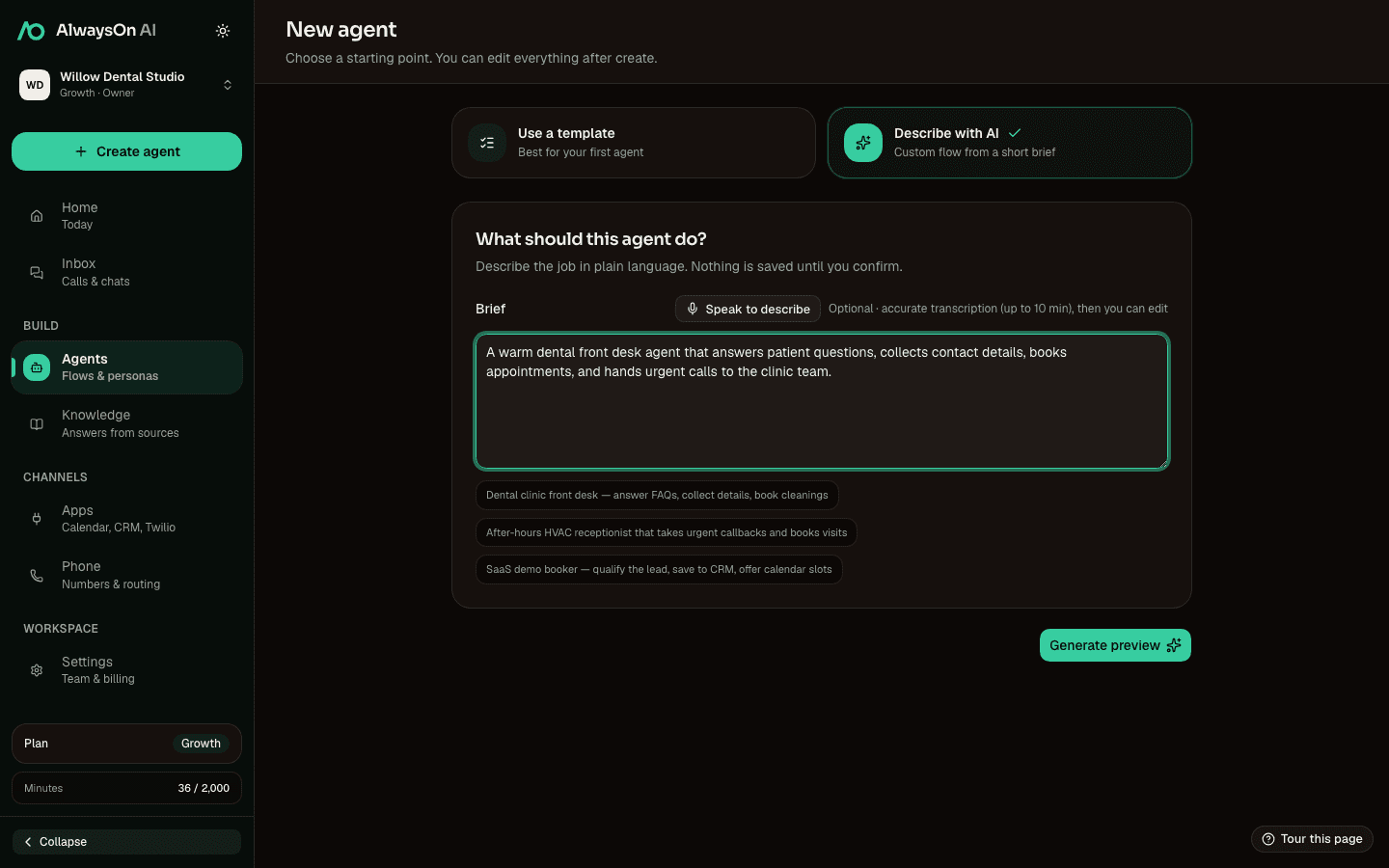
Describe the agent in plain language or start from a template. hiify.ai drafts a flow and persona for you to review before anything is saved.

The draft remains editable. Change the language, steps, voice, and connected tools before it reaches a caller.

hiify.ai · create
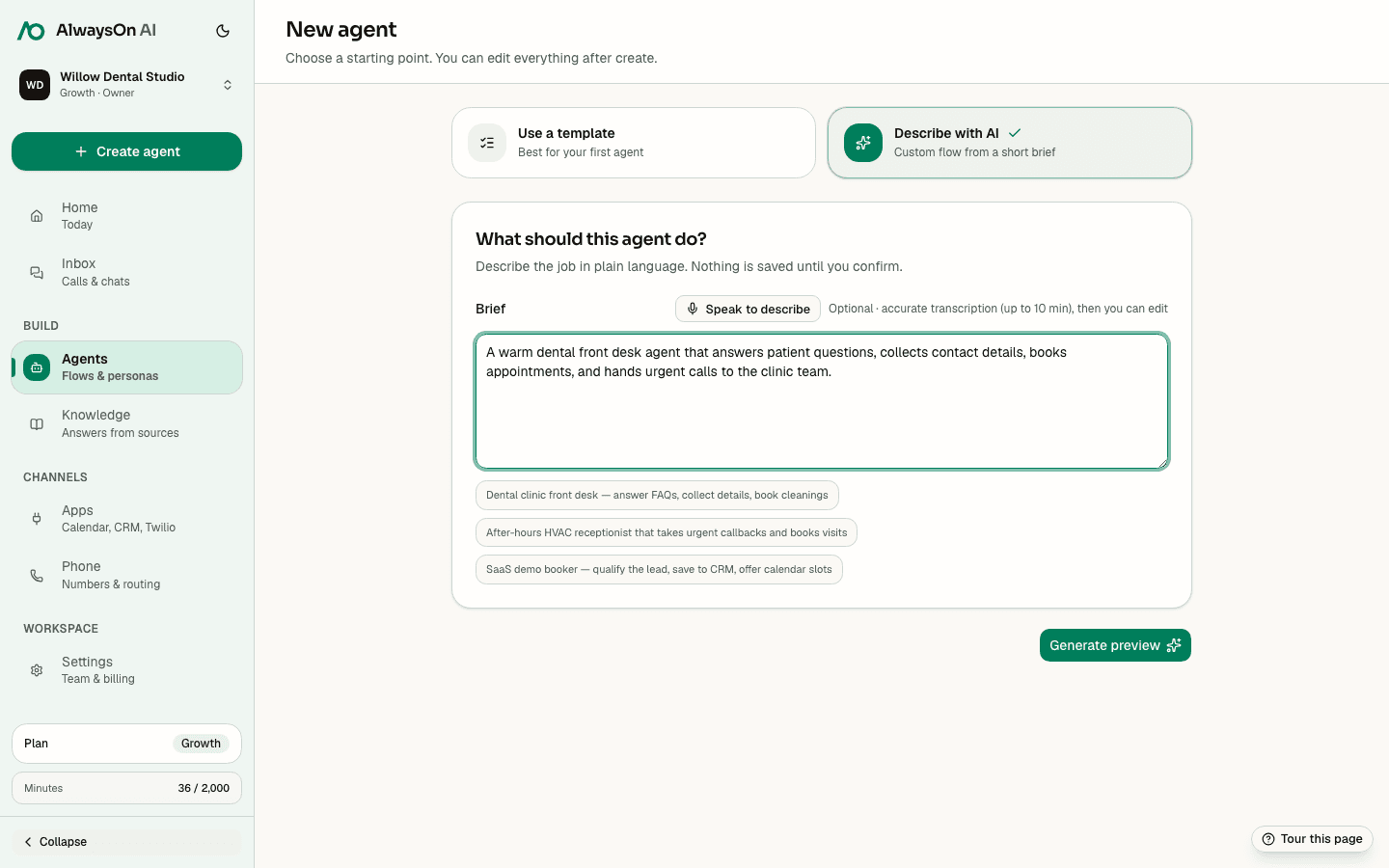
hiify.ai new-agent screen with the Create with AI option and a field for describing the agent
Actual hiify.ai workspace · Create
02Build

Make the conversation visible.

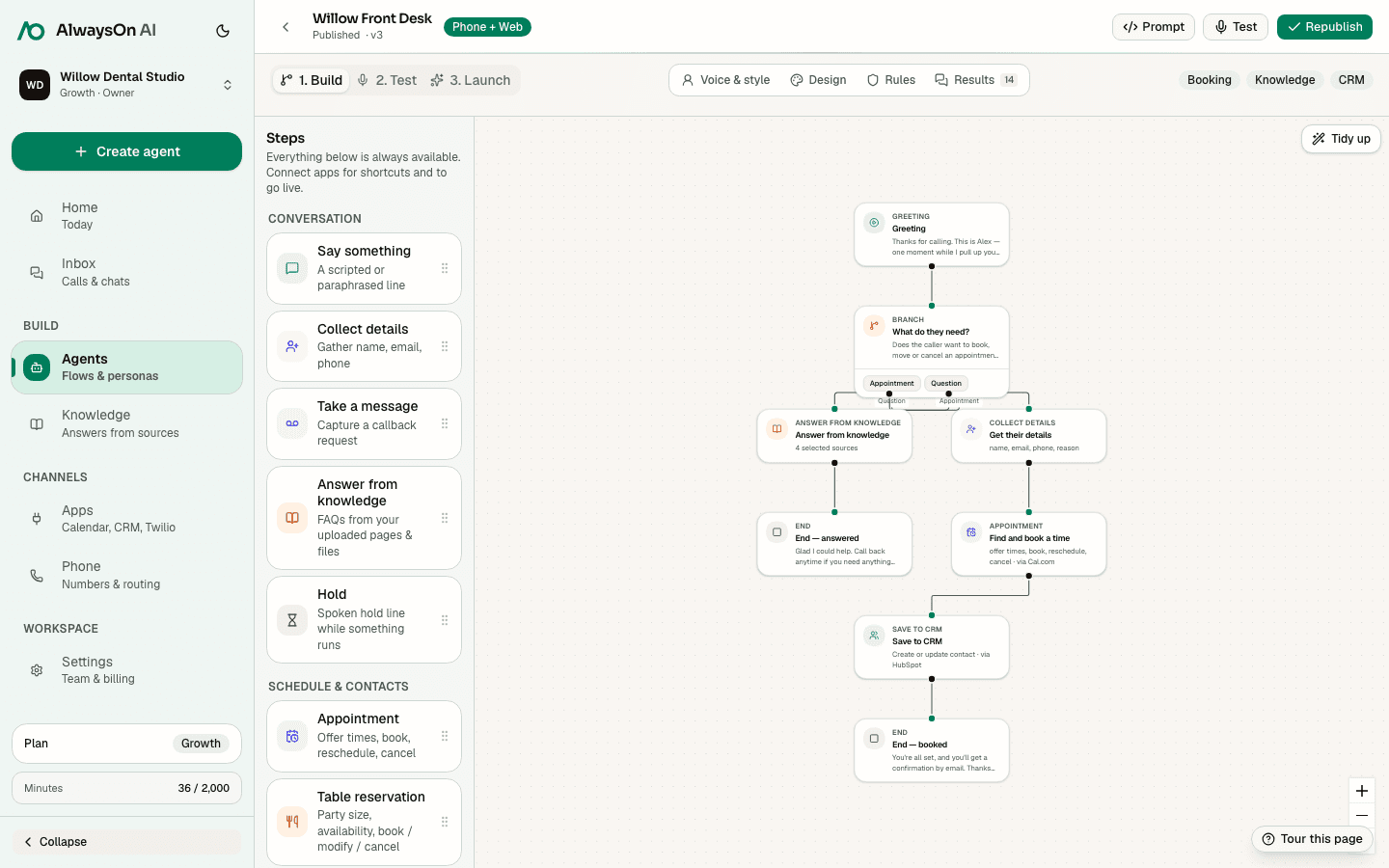
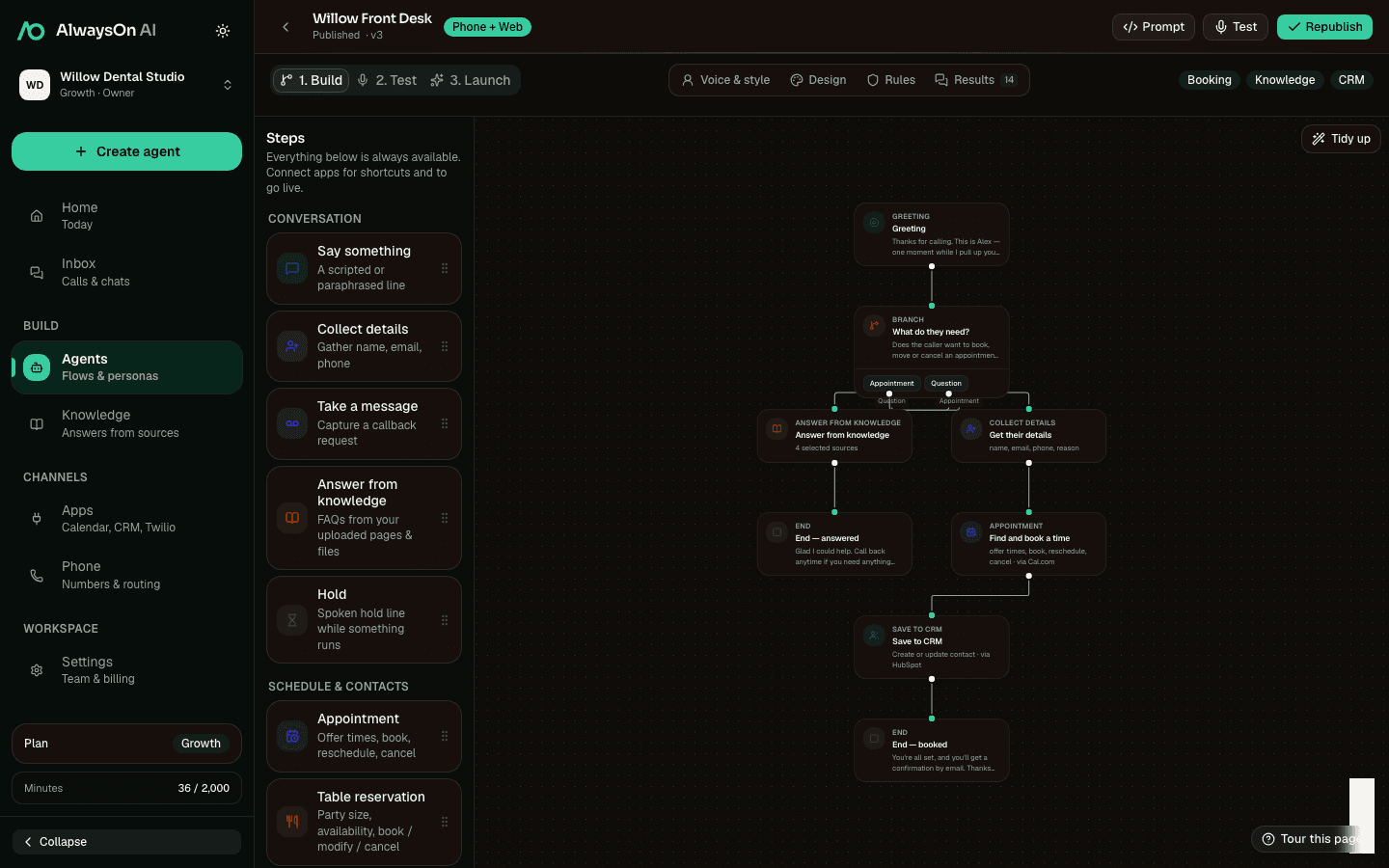
Arrange greetings, questions, branches, knowledge answers, booking actions, and CRM steps on one canvas. The route through the conversation is inspectable rather than buried in a prompt.

Warnings stay visible in the builder so missing content or connections can be resolved before publishing.

hiify.ai · build
hiify.ai visual flow builder showing connected greeting, branch, knowledge, details, appointment, CRM, and end steps
Actual hiify.ai workspace · Build
03Knowledge

Give the agent approved source material.

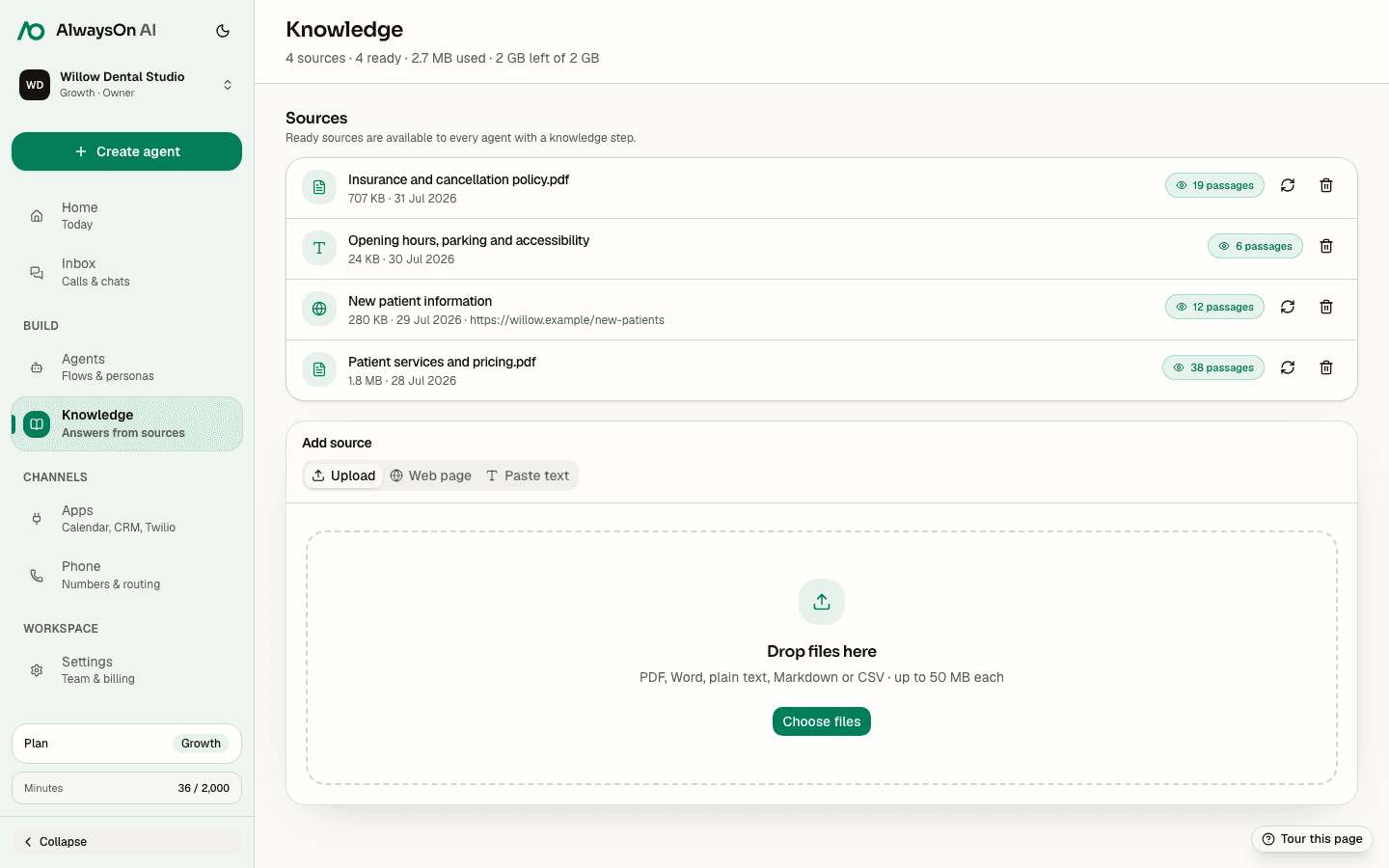
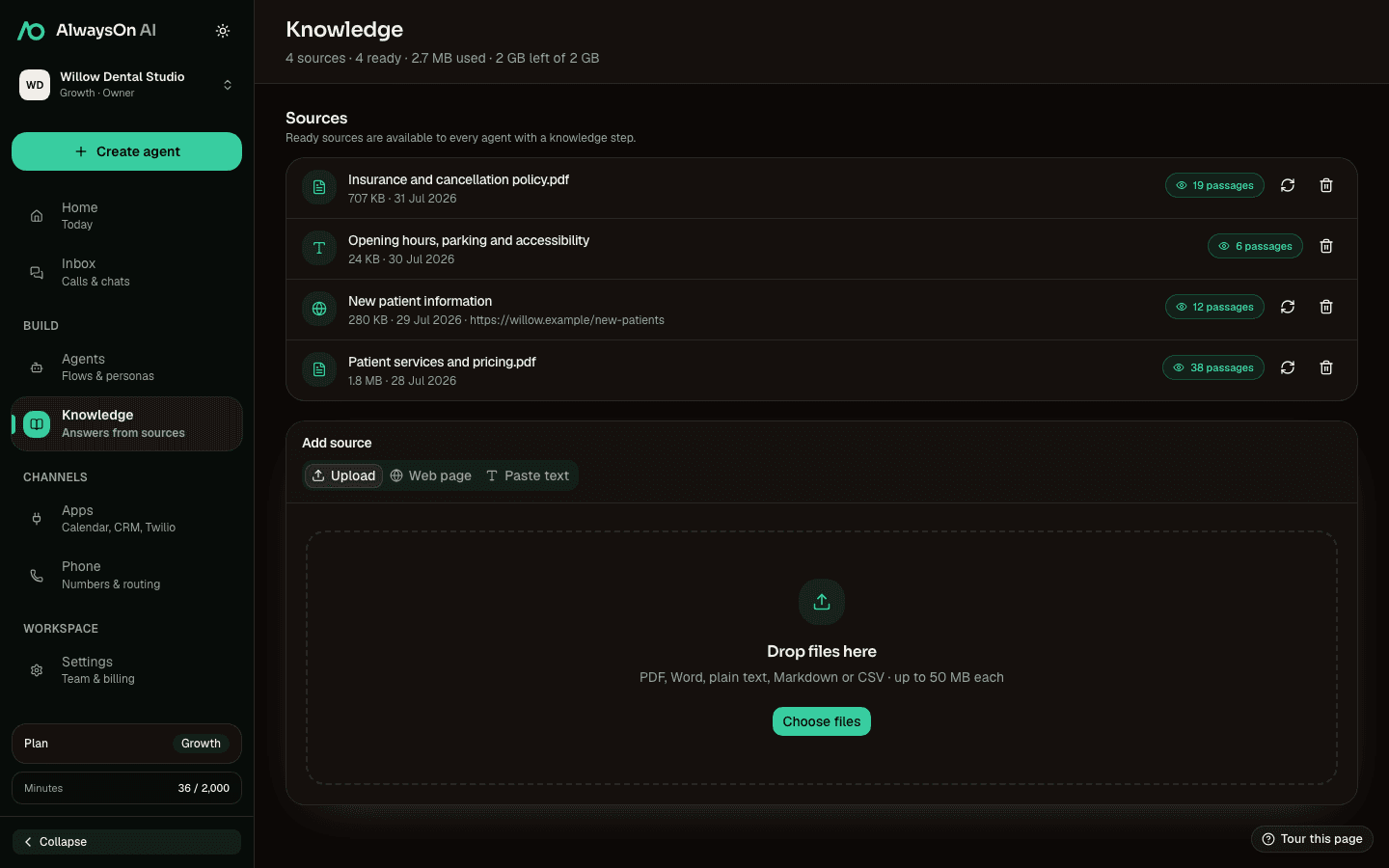
Add files, web pages, or pasted text for opening hours, services, policies, and frequently asked questions. Knowledge steps draw from those workspace sources.

Storage is metered by plan, and the workspace shows what is ready and how much of the allowance is in use.

hiify.ai · knowledge
hiify.ai knowledge screen with options to upload a file, add a web page, or paste text
Actual hiify.ai workspace · Knowledge
04Test

Have the conversation before customers do.

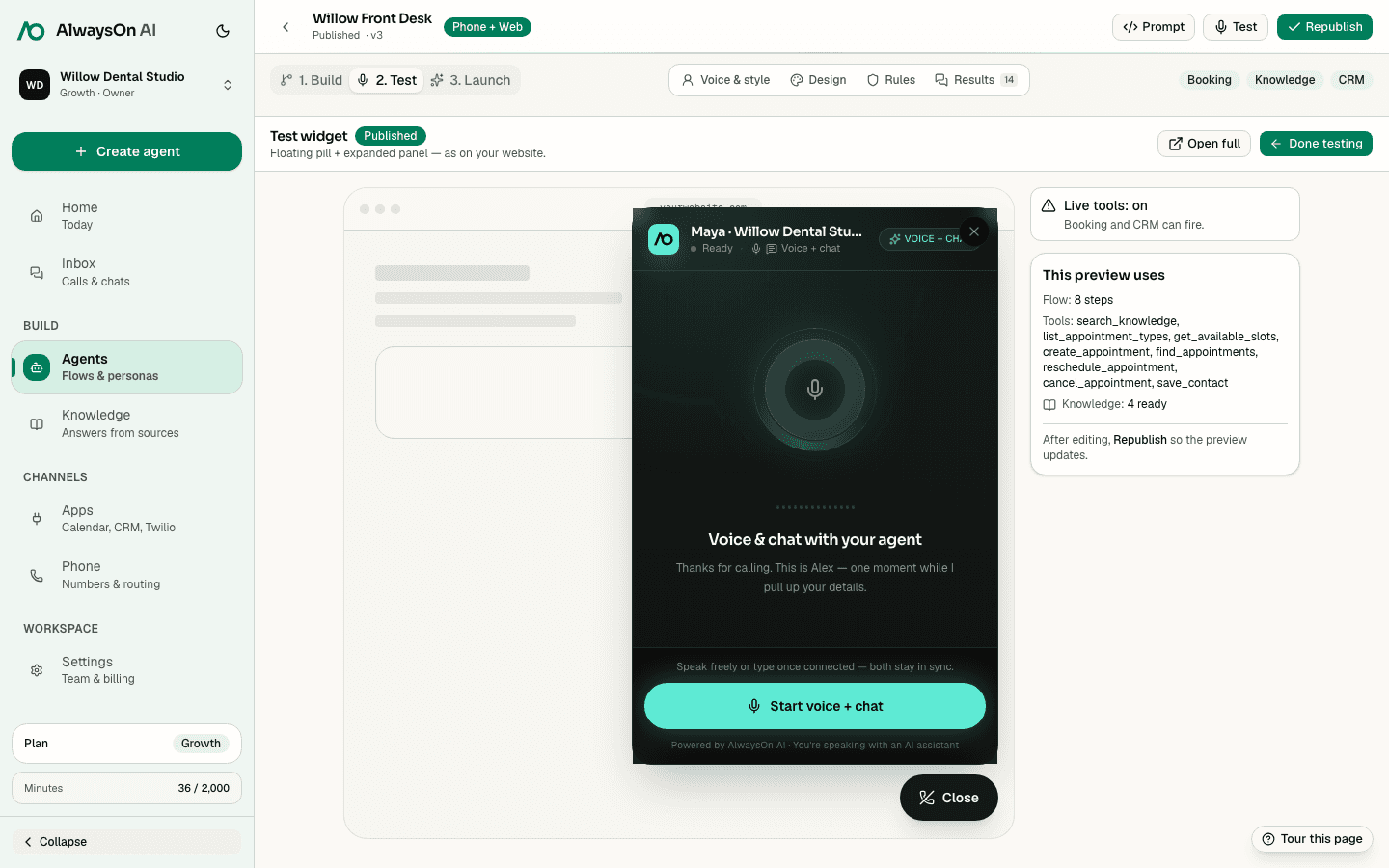
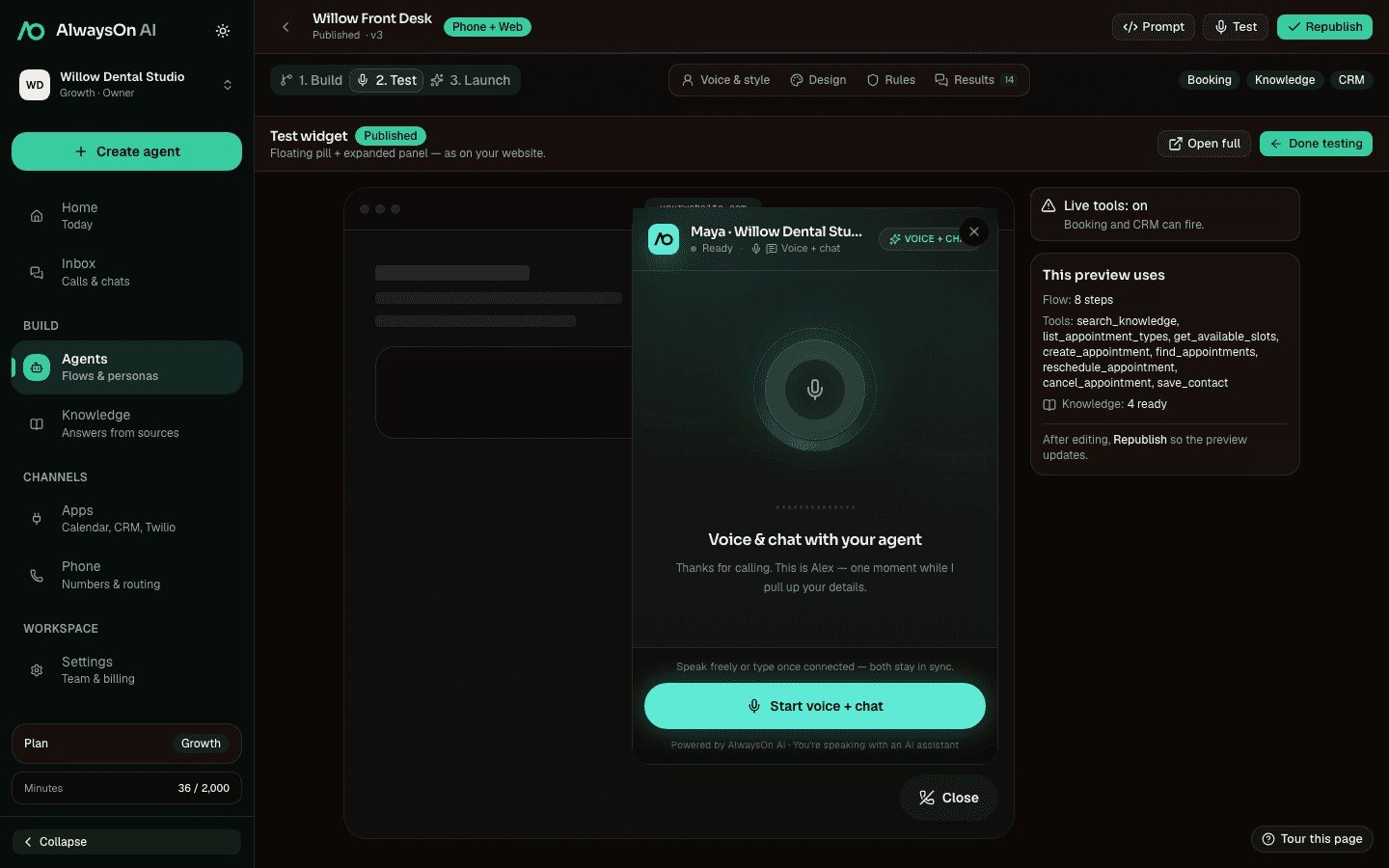
Run the actual voice and chat widget inside the builder. The test view lists the flow, tools, and unresolved setup beside the conversation.

Use those checks to connect missing apps, add knowledge, and republish after edits. Testing is part of the build loop, not a final reveal.

hiify.ai · test
hiify.ai test view showing the web widget preview and setup warnings beside it
Actual hiify.ai workspace · Test
05Launch

Know what is live and what it is doing.

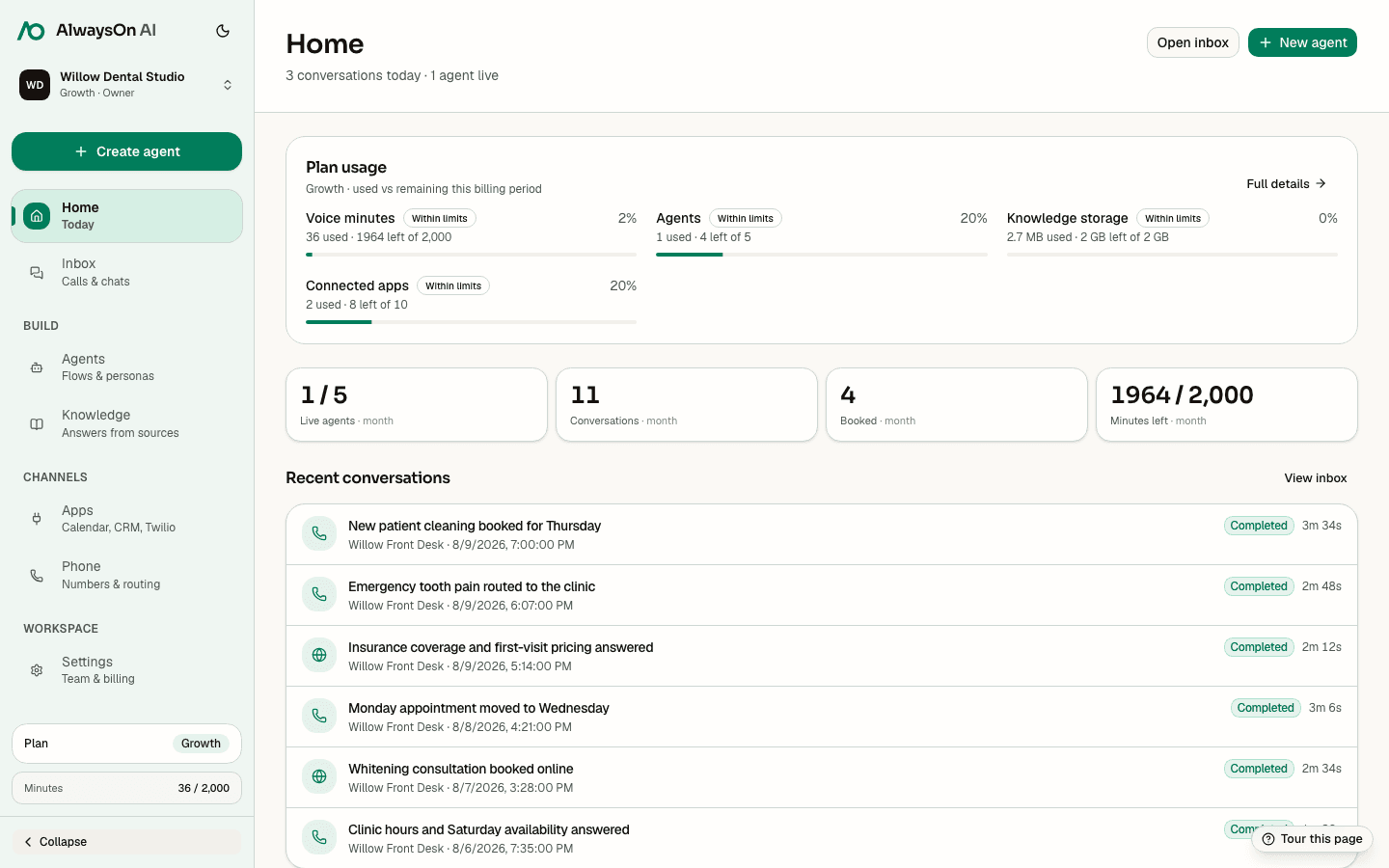
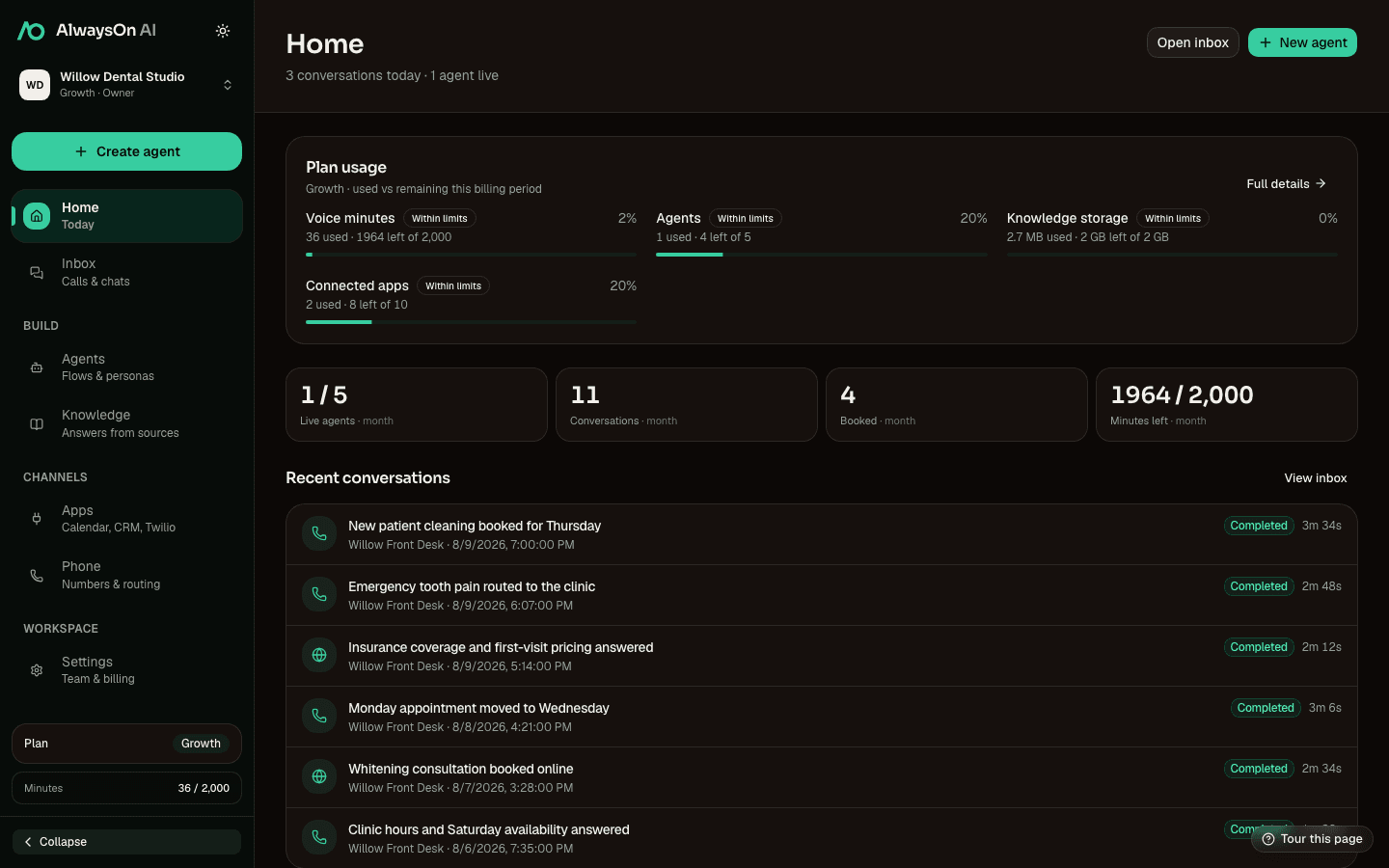
Launch on the web widget, or connect your own Twilio account and assign a number for phone calls. Home tracks live agents, conversations, booked appointments, and usage.

The populated workspace keeps operational results beside the setup state, so the team can see what is happening without opening a separate analytics tool.

hiify.ai · launch
hiify.ai home screen showing live agents, conversations, booked appointments, usage, and recent outcomes
Actual hiify.ai workspace · Launch
06Review

See what happened and why.

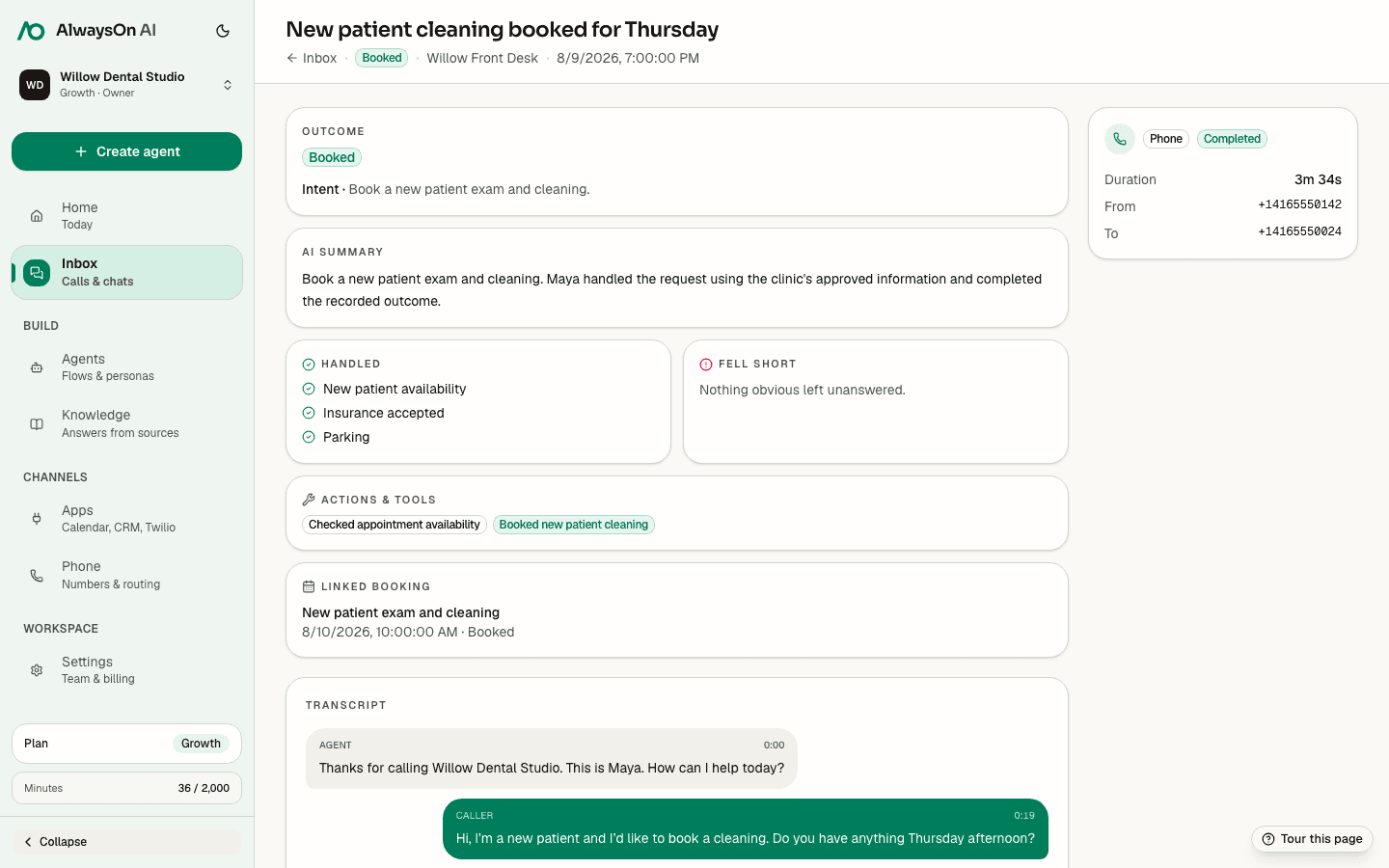
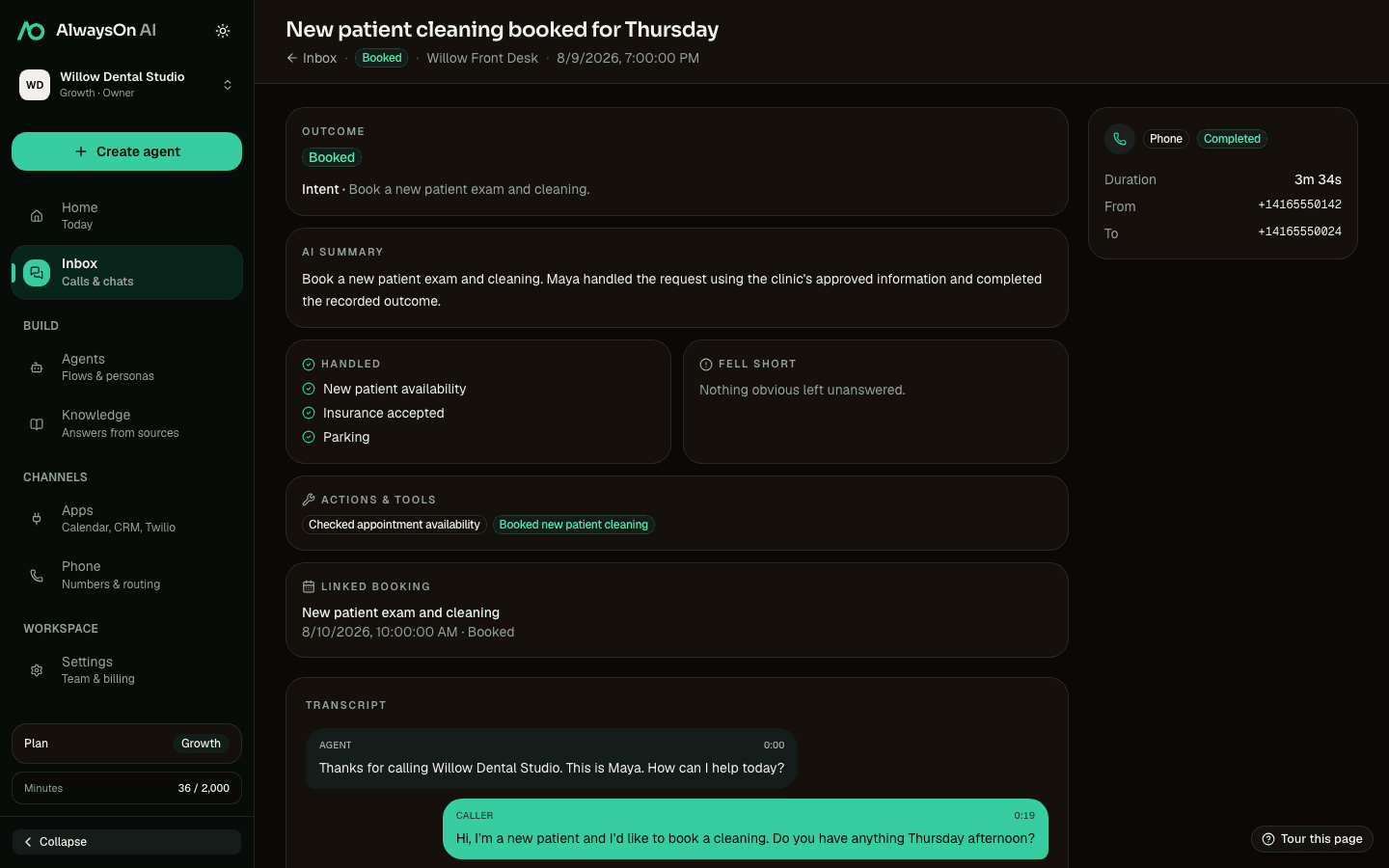
Open a completed conversation for the caller’s intent, answered questions, actions taken, booked appointment, and the full transcript.

That context makes the next edit obvious: improve a knowledge source, change a branch, or tighten the handoff, then publish the revised flow.

hiify.ai · review
hiify.ai conversation review with outcome analysis, actions, appointment details, and transcript
Actual hiify.ai workspace · Review

Next step

Now build the version your team needs

Start with a template or describe the job in plain language. Review every step before you publish.